![VIT06-Logo-Redesign-CMYK-1.jpg]](https://help.vev.com/hs-fs/hubfs/VIT06-Logo-Redesign-CMYK-1.jpg?height=40&name=VIT06-Logo-Redesign-CMYK-1.jpg)
You can monitor any ongoing charging session to see key details including energy delivered, charging duration, state of charge (if connected via telematics or through a DC charger) and price (if relevant).
Live Sessions: From Sessions
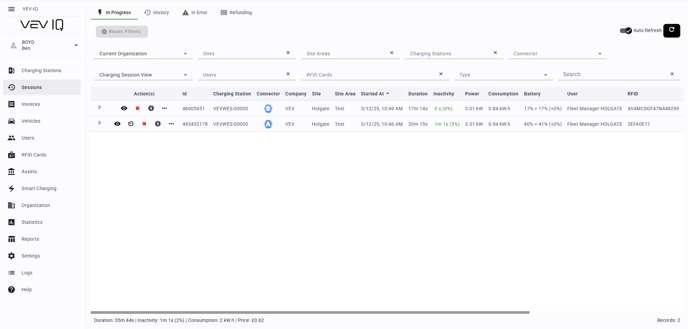
- Go to 'Sessions':
Select ‘Sessions’ from the left-hand menu - View top line information
Review a summary of your charging session - Open a session's details:
Click the ‘Eye’ button to open the session details
Live Sessions: From Charging Stations
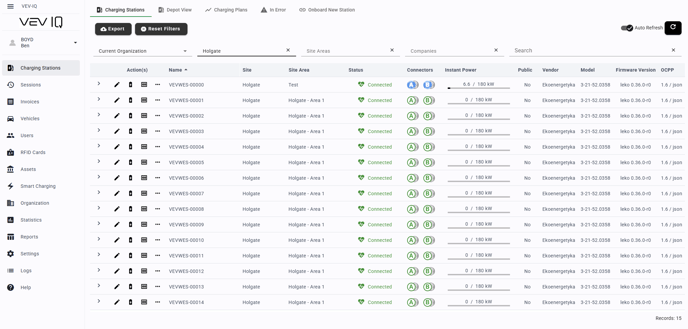
- Go to 'Charging Stations':
Select ‘Charging Stations’ from the left-hand menu. - View each connector
Expand the view to see each connector’s charging details - View the session details
Click the ‘Eye’ button to open the details
See the top session below
Understanding the Session Information
Table View
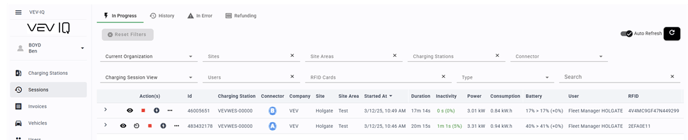
Inactivity:
Red indicates the vehicle is plugged in but hasn't been charging for a long time, for example if its fully charged
Power:
The power being delivered to the vehicle. If this is low or 0, there may be an issue with the charging process.
Consumption:
The total consumption of the vehicle during the session
Battery:
Monitor the vehicle's state of charge (SOC) at the start and its current/ final SOC
User/Vehicle Details
View which vehicle is using the charging station and which user started the session
Graph View
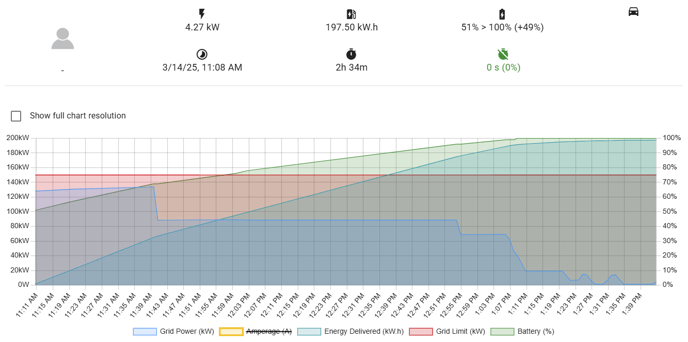
Grid Limit:
This shows the maximum amount of power allocated to the charger by VEV-IQ's smart charging system
Grid Power:
The amount of energy currently being delivered to the vehicle.
Battery (%):
The state of charge (SOC) of the vehicle's battery throughout the charging session.
You can also view historical sessions by selecting the 'History' tab on the top of the 'Sessions' page