![VIT06-Logo-Redesign-CMYK-1.jpg]](https://help.vev.com/hs-fs/hubfs/VIT06-Logo-Redesign-CMYK-1.jpg?height=40&name=VIT06-Logo-Redesign-CMYK-1.jpg)
Organisation
When users download the app, they need to add their organisation to be able to view charging stations. You can include this in your launch email, or on a sign near your charging stations.
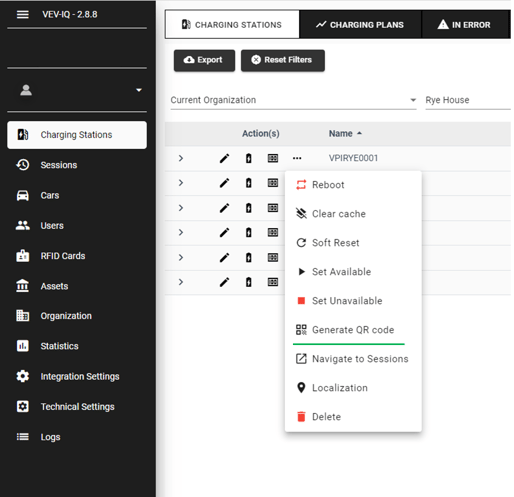
- Select 'Charging Stations' from the menu
- Identify any charging station in your company and select the 3 dots next to it
- Click 'Generate QR code'
- A PDF will be generated showing the QR codes for each connector
- You can use either of these as the QR code for your organisation
Chargers
When initiating a charging session through the App, drivers have the option to conveniently identify the charging station and select the specific connector by either scanning a QR code or choosing it from a list.
You can generate these QR codes either individually per charger, or for all chargers within a site area at one time.
Individual Charger
- Select 'Charging Stations' from the menu
- Identify the charging station and select the 3 dots next to it
- Click 'Generate QR code'
- A PDF will be generated showing the QR codes for each connector
- Print these out and stick them on your chargers
We recommend using a strong, durable label material to avoid the QR code being un-scannable
All Chargers at a Site
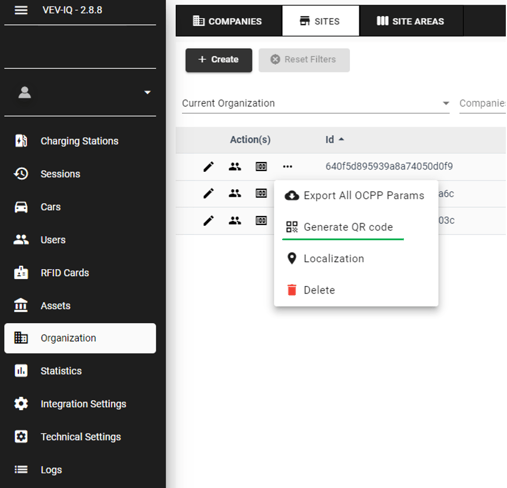
- Select 'Organisation' from the menu
- Select the 'Sites' tab
- Click on the 3 dots next to the site and select 'Generate QR code'
- A PDF will be generated showing the QR codes for your organisation
- You can print this out, include it on a sign or email it to your drivers.