![VIT06-Logo-Redesign-CMYK-1.jpg]](https://help.vev.com/hs-fs/hubfs/VIT06-Logo-Redesign-CMYK-1.jpg?height=40&name=VIT06-Logo-Redesign-CMYK-1.jpg)
RFID badges are used by drivers to identify themselves on charging stations, start or stop a session and pay to charge their EV if required. Some vehicles and chargers also enable autocharge, where the vehicle identifier is used for authentication
Virtual RFIDs
- When users register on the platform, they will automatically be assigned a 'Virtual RFID' which allows them to use the VEV-IQ Driver App or Web Portal
Create RFID/ Authentication
- Select 'RFID' from the menu
- Click 'Create'
- Complete the details for the RFID Card.
- RFID:
- If you have pre-ordered cards, input the associated ID to the card/ fob
- If you are using autocharge, input the vehicle identifier, such as the VIN or MAC
- If you are creating a virtual RFID, you can randomly generate this
- RFID:
- Complete the details for the RFID Card.
-
-
- Input a visual RFID and description
- Assign the RFID to a User and to a vehicle
-
- Select 'Default RFID Card' if required
- Click 'Save'
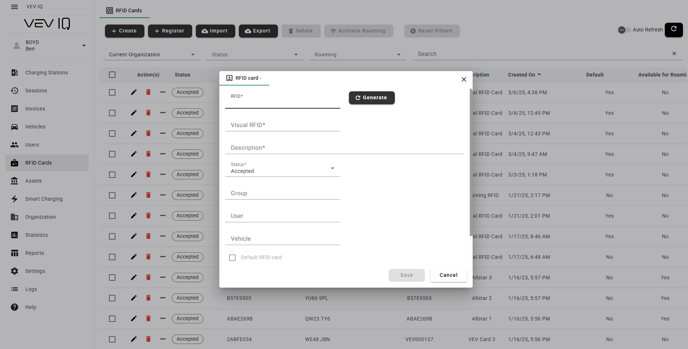
The ID will be provided when purchasing the RFID card. If the supplier has not provided a list or you have lost this, you can find this out by tapping it to the charging station
Import RFID Cards in Bulk
Tip: If whitelisting autocharge details, it is recommended to bulk import your tags prior to bulk importing your vehicles, so you can link the tag to the vehicle automatically on import
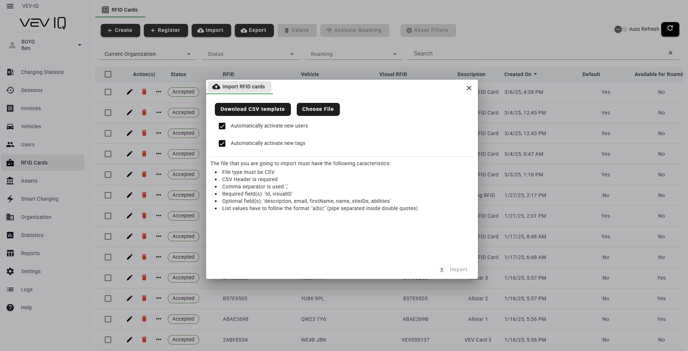
You can bulk import your RFID badges/cards in one go and assign them to existing users or create new users.
- Download the CSV
- Complete the CSV and save it in your documents
- Please note the required fields
- We recommend you complete description, email, firstName and name for all imports if information is known
- Select 'RFID' from the menu
- Click 'Import'
- Choose your .csv file and click import
- Select if you want to automatically activate users and the tags