![VIT06-Logo-Redesign-CMYK-1.jpg]](https://help.vev.com/hs-fs/hubfs/VIT06-Logo-Redesign-CMYK-1.jpg?height=40&name=VIT06-Logo-Redesign-CMYK-1.jpg)
Adding vehicles into VEV-IQ allows you to monitor your vehicles in the same place as your charging and energy. It also optimises the smart charging algorithm by understanding the vehicle battery size and charging capabilities
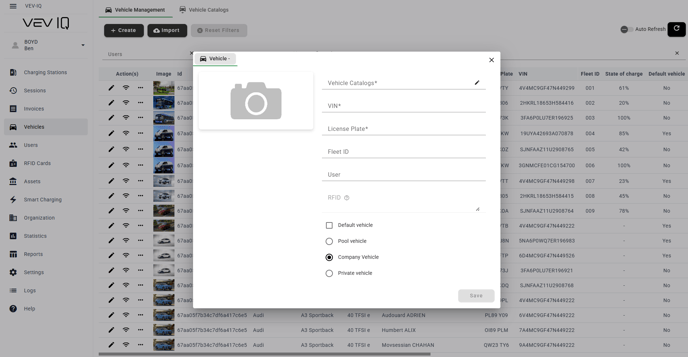
Create a New Vehicle
- Select 'Vehicles' from the menu
- Select 'Create'
- Select the vehicle form the car catalogue. This will automatically pre-populate some information
- Add the VIN number, licence plate and user, as well as the type of vehicle
- Select 'Save'
- You will be able to view a full list of vehicles and their associated user within VEV-IQ
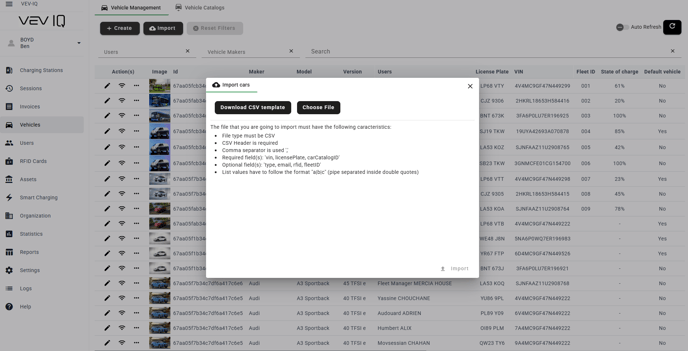
Easily add multiple vehicles at once using the Import feature in VEV-IQ.
Steps to Import Vehicles in Bulk:
Tip: If whitelisting autocharge details, it is recommended to bulk import your tags prior to bulk importing your vehicles, so you can link the tag to the vehicle automatically on import
-
Navigate to the Vehicles Tab
- In the left menu, go to Vehicles.
-
Select Import
- Click the Import button at the top.
-
Download CSV Template (Optional but recommended)
- Click Download CSV Template to get the correct format.
-
Fill in Vehicle Details
- Open the CSV file and enter the required vehicle details:
- Required:
VIN,License Plate,Car Catalog ID - Optional:
Type,Email,RFID,Fleet ID
- Required:
- Ensure values are separated by commas and follow the correct format.
- Open the CSV file and enter the required vehicle details:
-
Upload the CSV File
- Click Choose File, select your completed CSV, then click Import.
-
Vehicles Added to the List
- The system processes the file, and the new vehicles will appear in the list.